

Cheap Windows 10 Keys & Digital Licenses
Looking for a cheap Windows 10 key? Buy a Windows 10 Pro product key or Home edition license on GAMIVO with instant digital delivery!
Browse all products

Windows 10 Professional Global MS Products

from€59.99-92%
€4.86

Windows 10 Home Global MS Products
from€49.99-90%
€4.86

Windows 10 Professional EU MS Products
from€59.99-92%
€4.86
Windows 10 Home EU MS Products
from€49.99-90%
€4.86

Windows 10 Professional 2 PC Global MS Products
from€59.99-78%
€13.05
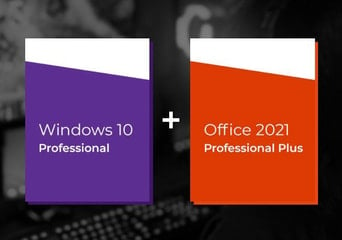
Windows 10 Professional + MS Office Professional Plus 2021 Global MS Products
from€69.00-60%
€27.81

Windows 10 Home for 2 PC EN Global MS Products
from€49.99-69%
€15.36

Windows 10 Professional N Global MS Products
from€59.99-78%
€13.05
Windows 10 Home + MS Office Professional Plus 2021 Global MS Products
from€34.98-36%
€22.37

Windows 10 Professional + MS Office 2021 Professional Plus 1 PC Global MS Products
from€69.00-52%
€33.25

Windows 10 Professional N 5 PC Global MS Products
from€59.99-78%
€13.05
Windows 10 Home + MS Office Professional Plus 2019 Global MS Products
from€149.99-83%
€25.69
Windows 10 Home N Global MS Products
from€49.99-78%
€11.23

Windows 10 Professional 5 PC EN Global MS Products
from€59.99-50%
€29.71

Windows 10 Home for 5 PC EN Global MS Products
from€49.99-50%
€24.86
Windows 10 Home + MS Office Professional Plus 2019 EU MS Products
Out of stock
Windows 10 Professional + MS Office Professional Plus 2016 - Bundle Global MS Products
Out of stock
Windows 10 Professional + MS Office Professional 2019 - Bundle EU MS Products
Out of stock
Windows 10 Professional + MS Office Professional Plus 2019 - Bundle EU MS Products
Out of stock
Securing a Windows 10 key remains one of the smartest and most cost-effective ways to ensure a stable, highly compatible, and responsive computing environment. Initially launched as a unified ecosystem across multiple devices, this operating system bridges the gap between traditional desktop setups and touch-centric portability. By choosing a legitimate license on GAMIVO, you secure immediate access to a flexible software environment designed to maximize your daily productivity, creative workflows, and gaming configurations.
What Is Windows 10?
This widely adopted operating system serves as the foundational core framework for modern personal computers, corporate laptops, and workstation rigs. Moving past experimental legacy interfaces, it features a familiar hybrid Start Menu that integrates classic folder layouts with dynamic live updates.
The underlying architecture is highly optimized for performance efficiency, offering fast boot times, intelligent RAM utilization, and robust hardware backward compatibility. Whether you are running legacy database applications or modern content creation tools, this operating system provides an unwavering layer of system stability.
Windows 10 Home vs Pro: Comparing the Editions
When preparing to upgrade or install your operating system, understanding the key differences between the primary editions ensures you choose the right tools for your specific workflow:
-
Windows 10 Home – Designed explicitly for everyday retail consumers, students, and casual gamers. A standard Windows 10 Home key grants full access to core performance benefits, the built-in antivirus defender suite, biometric face or fingerprint sign-in features, and full gaming integration.
-
Windows 10 Pro – Tailored for power users, freelance developers, and corporate business networks. Beyond the core features, activating a Windows 10 Pro key unlocks advanced enterprise-grade tools, including BitLocker full-disk encryption, Hyper-V virtual machine creation, Remote Desktop hosting, and granular group policy controls.
Key Benefits of the Operating System
-
Advanced Integrated Defense: Protect your files with a comprehensive built-in security shield that monitors your system in real time against viruses, ransomware, and spyware across local apps and cloud connections.
-
Unified Gaming Architecture: Harness the full graphical optimization capabilities of DirectX 12 to unlock richer visuals, superior frame rates, and multi-core CPU efficiency across modern gaming titles.
-
Intelligent Space Customization: Organize complex tasks and separate your professional projects from leisure layouts seamlessly using built-in virtual desktop configurations.
-
Cloud-Ready Interoperability: Synchronize local user profiles, app data, and critical documents across multiple devices effortlessly via native cloud drive tools.
Why Buy a Windows 10 License on GAMIVO?
GAMIVO is your premier digital e-commerce platform if you’re looking for a Windows 10 key at the best price. By connecting consumers with a global network of verified digital suppliers, our platform allows you to avoid full retail prices and discover exceptional markdowns on Windows 10 Pro and Home licenses.
GAMIVO offers a safe and intuitive checkout process, a trusted buyer protection program, and multiple payment alternatives. Enjoy instant digital delivery 24/7, allowing you to activate your device right away.
How to Activate Your Software License Key
Redeeming your digital code and activating your platform requires only a few straightforward actions:
-
Open your computer's Start menu and launch the Settings gear application.
-
Choose the Update & Security section, then navigate to the Activation tab in the sidebar.
-
Select the option labeled Change Product Key or Enter a Product Key.
-
Carefully type or paste your genuine activation code into the field and click next to let the system validate your lifetime license.
-
FAQ
- When did Windows 10 come out, and is Windows 10 still supported?
Windows 10 was officially released on July 29, 2015. Its standard free mainstream support from the OS creator concluded on October 14, 2025. However, the system remains widely used, and organizations or individuals can opt for Windows 10 extended support or enroll in official Windows 10 extended security updates (ESU) to continue receiving critical safety patches through 2028.
- Windows 11 vs Windows 10: Which is better?
When conducting a direct Windows 11 vs Windows 10 comparison, the ideal choice depends on your hardware specifications and visual preferences. While the newer version introduces specialized designs like a centered taskbar and mandatory hardware protections like TPM 2.0, the older operating system remains the industry benchmark for lightweight resource consumption and near-universal backward compatibility with older legacy apps and budget laptops.
- How to turn on Bluetooth on Windows 10?
To learn how to turn on Bluetooth on Windows 10, follow these quick steps:
-
Open the Start menu and launch the Settings gear application.
-
Select the Devices section from the primary configuration list.
-
Click on Bluetooth & other devices in the left sidebar.
-
Toggle the main Bluetooth slider switch to the On position.
-
- How to screenshot on Windows 10?
If you need to know how to screenshot on Windows 10, the quickest method is to press the Windows key + PrtScn simultaneously on your keyboard. Your monitor will dim momentarily, and the full image will save automatically inside a dedicated "Screenshots" folder located within your default Pictures directory. Alternatively, you can use the built-in Snipping Tool utility for custom snips.
- How to install Windows 10 from a USB drive?
To complete a fresh installation, read this guide on how to install Windows 10 from a USB:
-
Create a bootable flash drive utilizing the official operating system media creation utility.
-
Insert the flash drive into an open port on your computer and restart the system.
-
Access your system hardware menu during boot-up (learn how to enter BIOS Windows 10 guidelines by repeatedly tapping keys like F2, F12, or Del, depending on your motherboard).
-
Set your USB drive as the primary boot preference, save settings, and follow the on-screen setup prompts to finalize the layout.
-
- How to screen record on Windows 10?
To capture video footage of your screen, you can utilize the native screen recorder Windows 10 feature called the Game Bar. Press Windows key + G to open the interface overlay, locate the Capture widget panel, and click the circular Record icon to begin capturing your active window instantly.
- How to factory reset Windows 10?
If your computer is experiencing slowdowns, learning how to factory reset Windows 10 or how to reset Windows 10 to its default settings can fix the performance issue:
-
Navigate to the system Settings panel and choose Update & Security.
-
Select the Recovery tab from the left navigation panel.
-
Under the Reset this PC section header, click the Get started button.
-
Choose whether to retain your personal documents or remove everything, and follow the validation prompts to reinstall a clean version of the software.
-
- How to enable secure boot on Windows 10?
To satisfy modern system security checks and learn how to enable secure boot Windows 10, you must adjust your hardware configuration settings:
-
Restart your machine and enter your system BIOS/UEFI settings dashboard during setup.
-
Locate the security or boot preferences section.
-
Find the Secure Boot configuration parameter and switch its toggle to Enabled.
-
Save your adjustments and reboot the machine to complete the implementation.
-